Replace Create From Form With Info Window Form
Goal: Functional
Developer: Hengsin (talk), Elaine Tan (etantg)
Sponsor: TDI APJ Malaysia
Feature Ticket: IDEMPIERE-5396
Description:
Use Info Window and Process to replace existing Create From custom form.
Scope:
- Material Receipt Create Lines From
- Invoice (Vendor) Create Lines From
- Vendor RMA Create Lines From
- Customer RMA Create Lines From
- Invoice (Customer) Create Lines From
- Customer Return Create Lines From
- Add Create Lines From feature to Return to Vendor
- Add Create Lines From feature to Shipment (Customer)
Application Dictionary Changes:
- Add Info Window field to Column tab of Table and Column window.
:
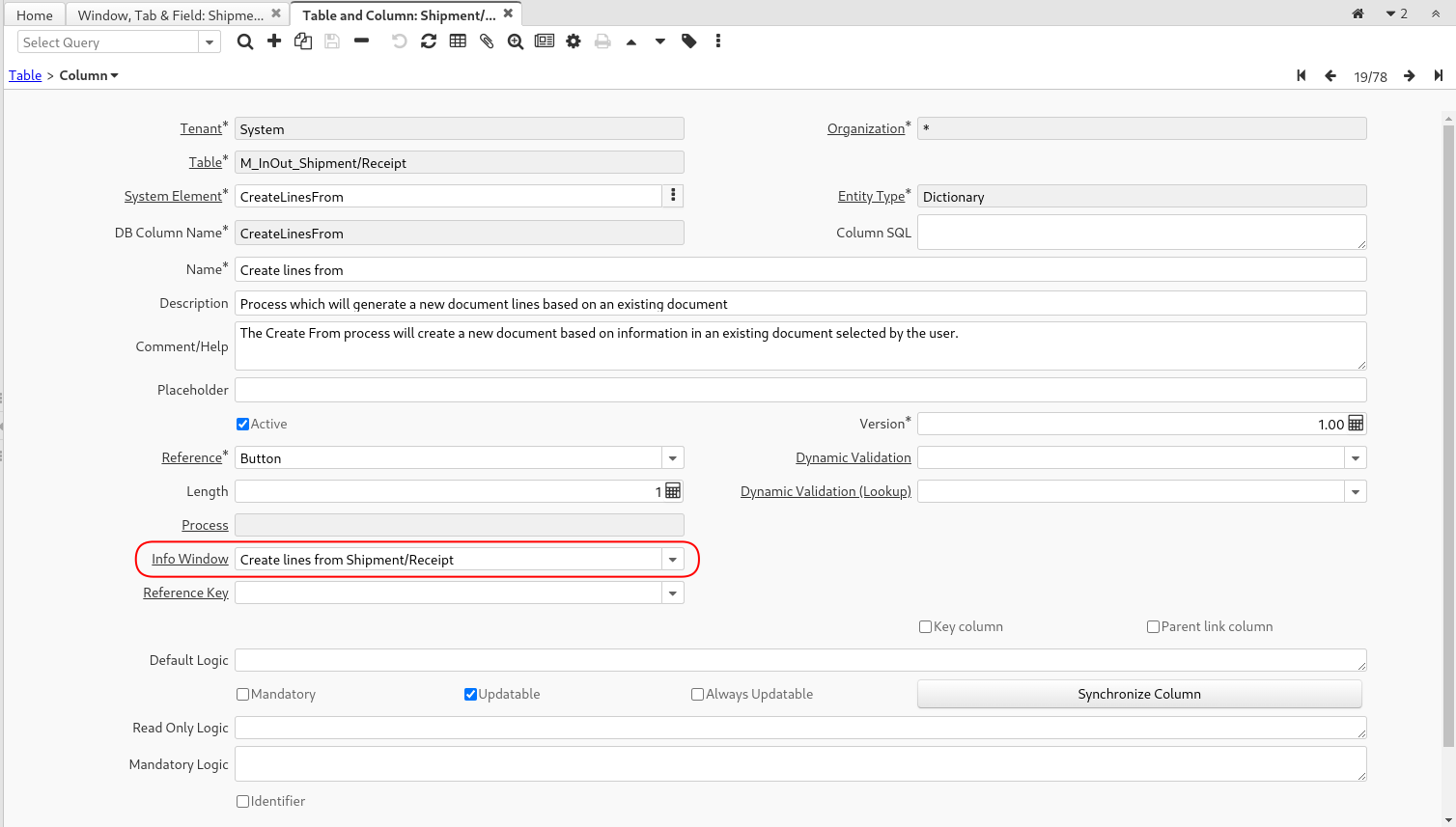
Info Window field of Column
:* Info Window field is active when Column Reference is Button.
:* For Button Reference, user will select one of Process or Info Window.
:* At Info Window, user will configure the process to run.
: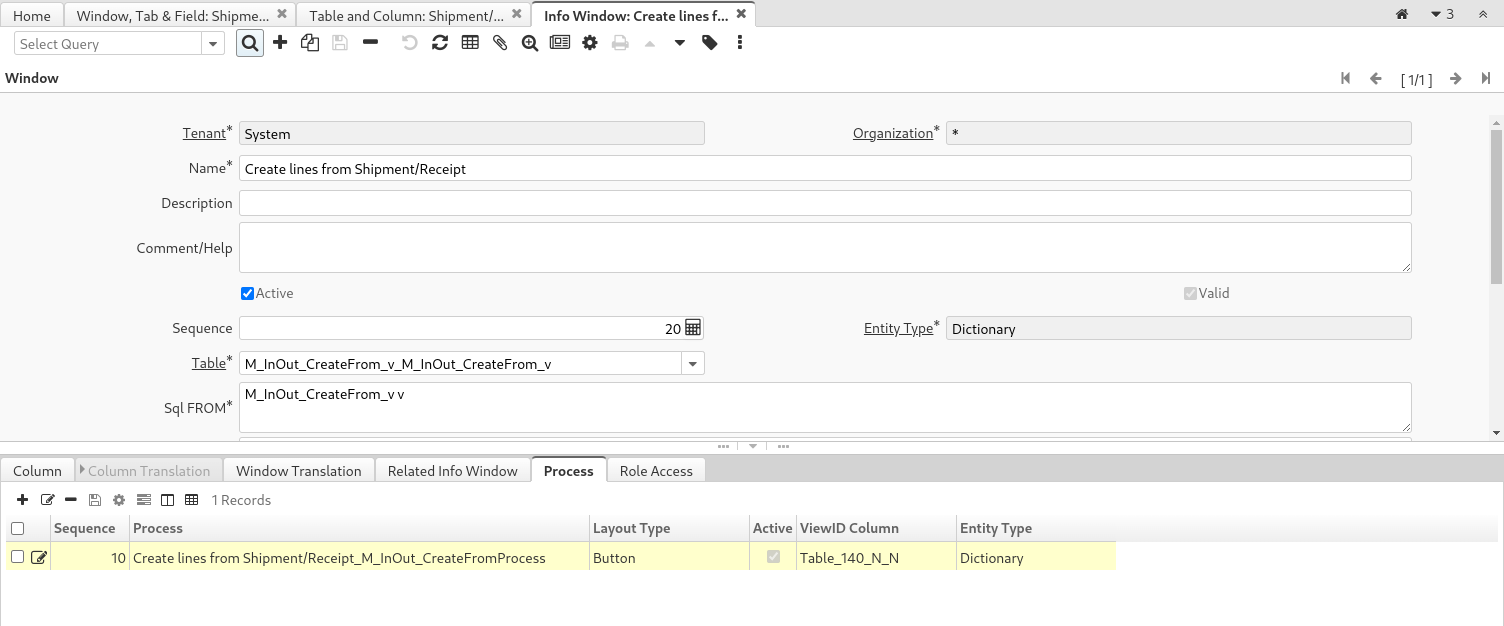
Info Window Process
- Add Query After Change field to Column tab of Info Window window.
:
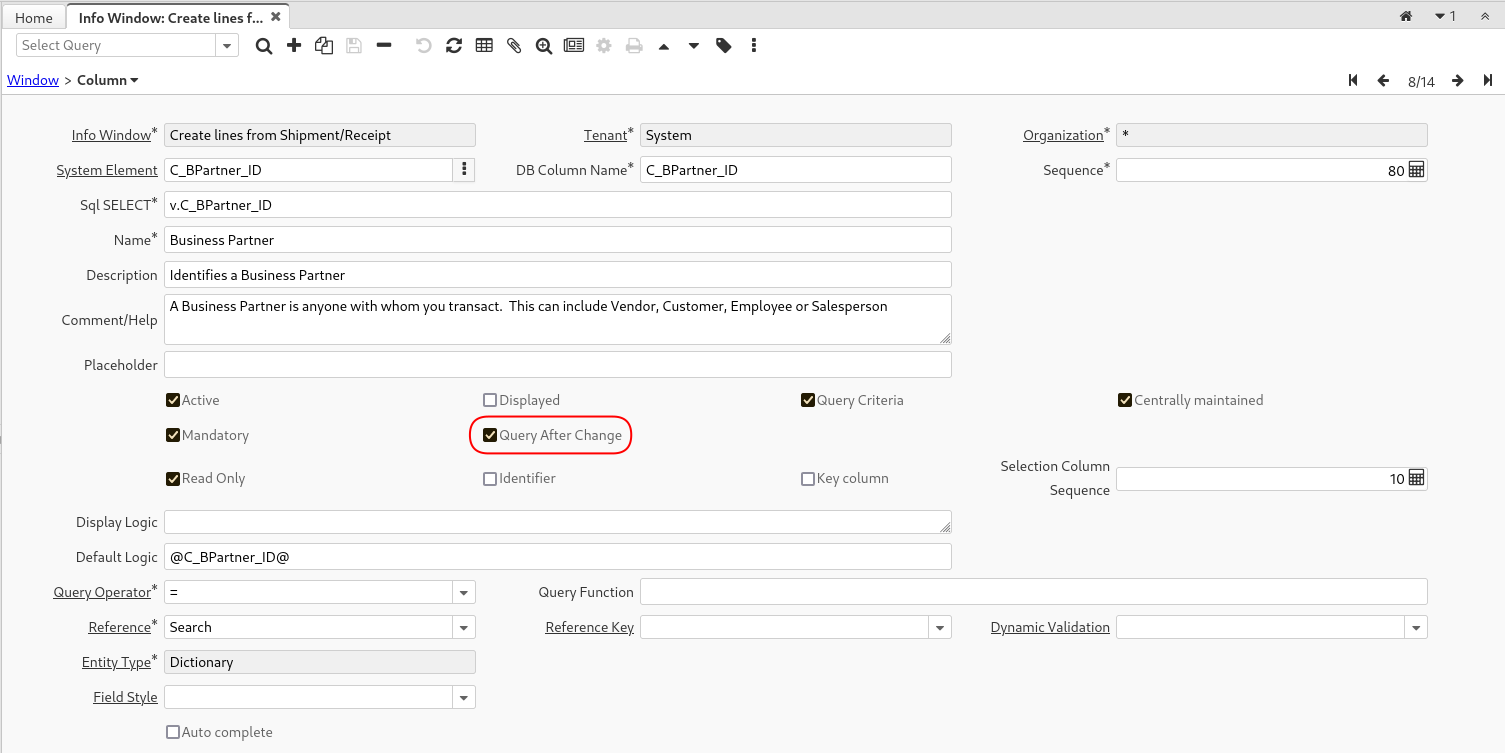
Info Column Query After Change flag :* The flag is visible and active for info column with Query Criteria=Yes. :* After user has made changes to an info column with Query After Change=Yes, info window will execute query if all visible Query Criteria info column with Query After Change=Yes have been filled with value. If one of the Query After Change info column is empty, existing query result (if any) will be cleared.
Info Window, View and Process:
- Create lines from Invoice
-
- View: C_Invoice_CreateFrom_v
-
- Process: C_Invoice_CreateFromProcess
- Create lines from Shipment/Receipt
-
- View: M_InOut_CreateFrom_v
-
- Process: M_InOut_CreateFromProcess
- Create lines from RMA
-
- View: M_RMA_CreateFrom_v
-
- Process: M_RMA_CreateFromProcess
Material Receipt Create Lines From:
- De-activate existing Create From column (M_InOut.CreateFrom)
- Add CreateLinesFrom column to M_InOut. Configure as Button and uses Info Window (see Screen Shot above).
- Material Receipt window will render a Create lines from button.
:
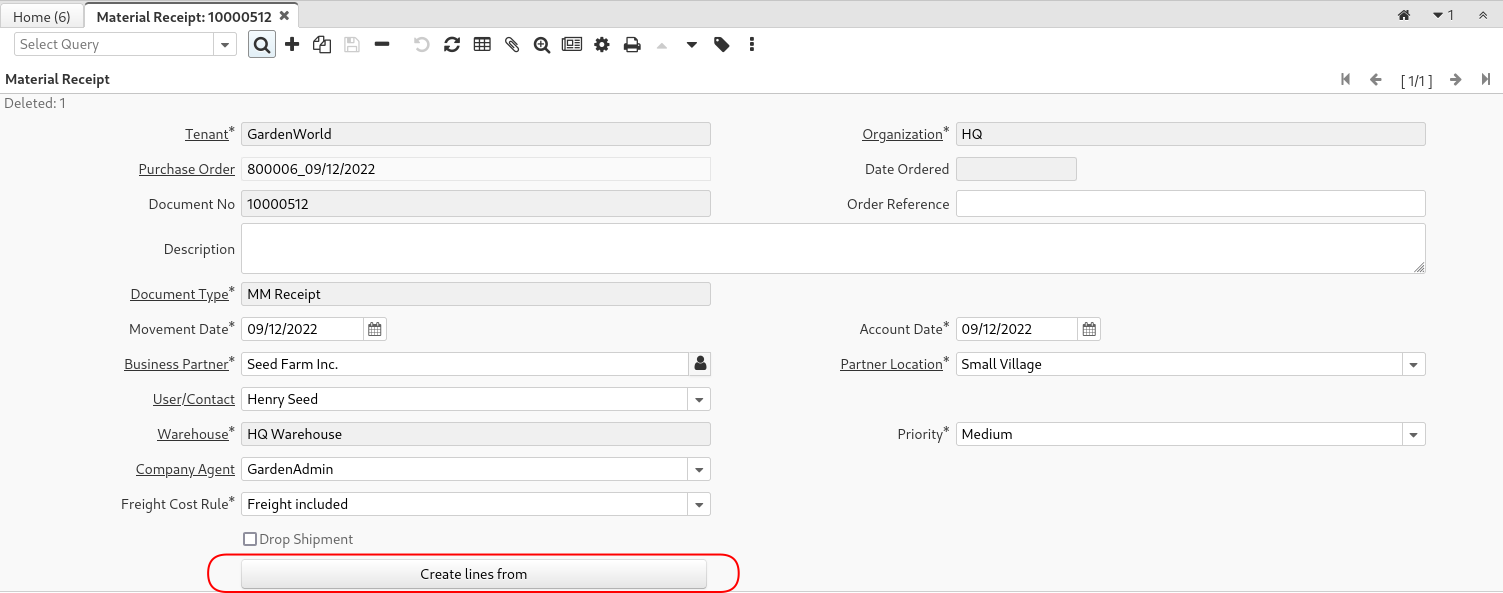
Material Receipt Create Lines From Button
- Clicking on the Create lines from button will open the corresponding info window.
:
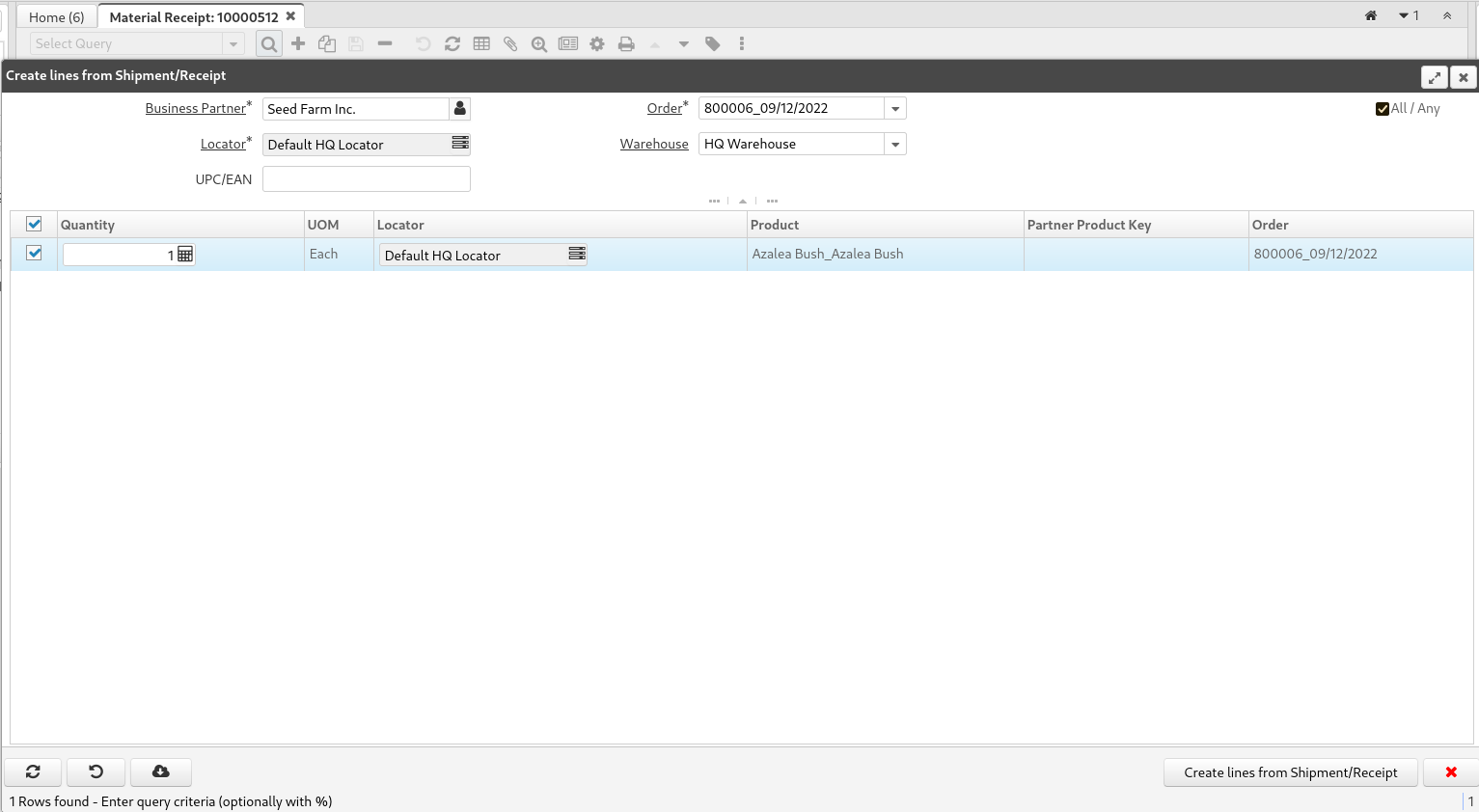
Material Receipt Create Lines From Info Window
- The configure process is render as a button to the left of the "X" button.
- User will select order, execute search, select order lines and click the Create lines from Shipment/Receipt button to create new Material Receipt lines from selected Order lines.
- The other windows (Invoice (Vendor), Vendor RMA, etc) will follows the same configuration and usage pattern.
Source: Wiki